The Hub
Your home screen: upload a video, pick a tool, and find your way around the app.
What the Hub is
The Hub is where video enters CleanCut, found at /upload and from the Upload item in the sidebar. It does two things at once: it is where you bring a video in, and it is the launcher for the tool you want to run on that video. (Your role-aware Home, at /dashboard, is the separate page showing what needs you and how your work is performing.)
The left side of the Hub is the upload zone — drag and drop a file or paste a video URL. The right side is a tool detail panel that explains the selected tool, its steps, and a pro tip. Once a video is ready, the "Open in…" button sends that same media straight into the tool you picked.
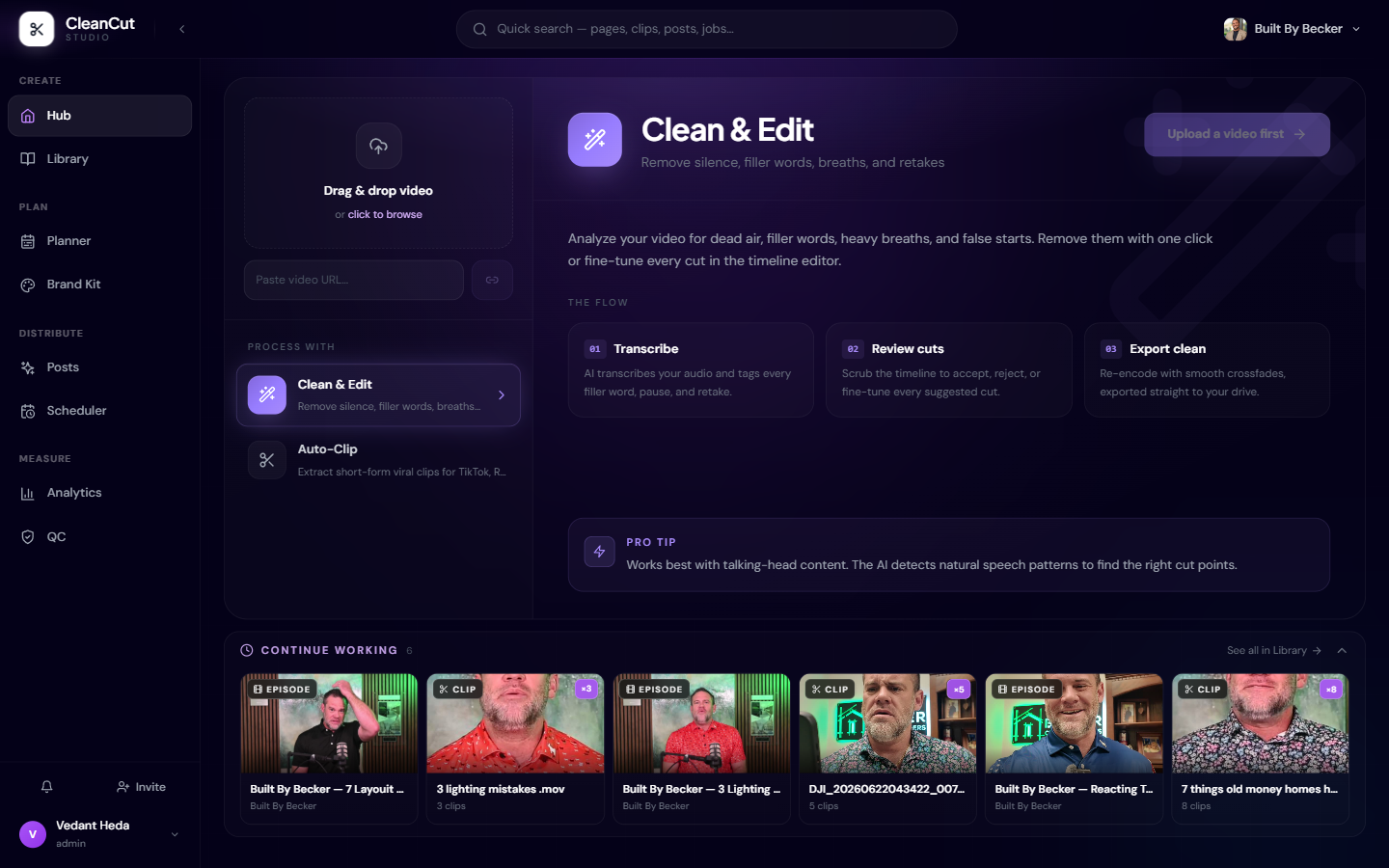
Picking a tool
Under "Process with" in the Hub sidebar you choose which tool handles your upload. Click a tool to read what it does in the detail panel, then click "Open in…" once your video is ready.
The "Upload a video first" button stays disabled until your media finishes uploading — that is your cue that the file is not ready yet.
Quick search and switching workspaces
The search box in the center of the top bar is the fastest way to jump anywhere. Type a page name, a tool, or a recent filename — matching pages and recent jobs appear in a dropdown, and clicking a result navigates straight there.
On the right of the top bar is the workspace switcher. CleanCut scopes most of your work — planner ideas, brand kits, analytics, and team members — to the active workspace, so switch workspaces here when you want to work on a different client or channel.
Not seeing the tool or data you expect? Check the workspace switcher first — you may be in a different workspace than the one that holds it.