Signing in & your account
Create an account or sign in, reset a forgotten password, and land in the Hub.
Creating an account or signing in
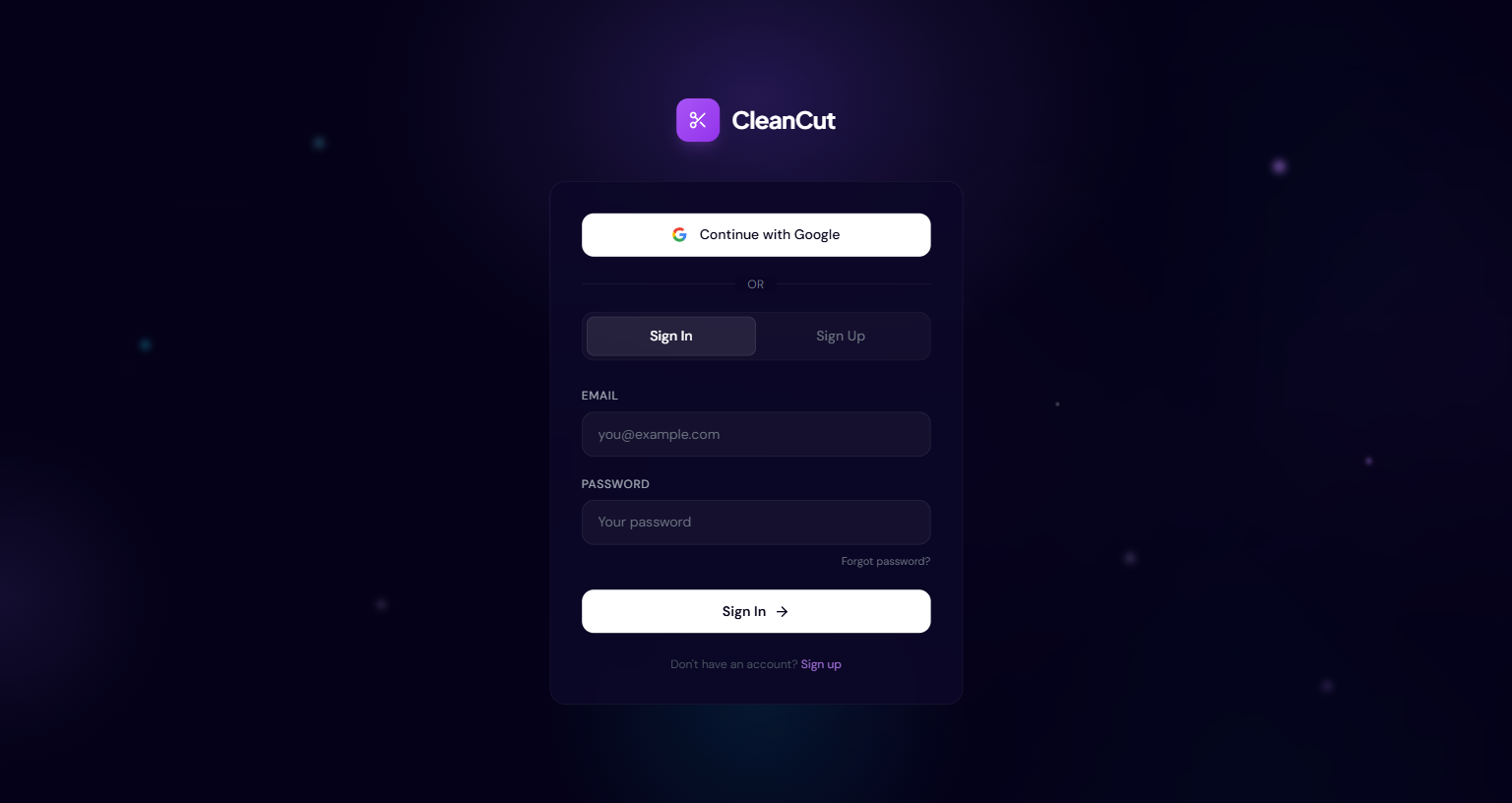
CleanCut uses a single sign-in screen with two tabs: "Sign in" for returning users and "Sign up" for new ones. You can use email and password, or continue with Google — both land you in the same studio.
- 1Open CleanCut. If you are not signed in, the auth screen appears automatically.
- 2To create an account, choose the "Sign up" tab and enter your name, email, and a password (at least 6 characters), then confirm it.
- 3To sign in to an existing account, choose the "Sign in" tab and enter your email and password.
- 4Or skip the form entirely and click "Continue with Google" on either tab.
Confirming a new account
When you sign up with email and password, CleanCut sends a confirmation message to your inbox. After you click "Create account" you will see a note asking you to check your email and confirm before signing in.
Signing up with Google skips the email confirmation step — you go straight into the app.
Forgot or reset your password
If you cannot remember your password, use the "Forgot password?" link beneath the password field on the Sign in tab.
- 1On the Sign in tab, click "Forgot password?" — this opens the forgot-password page at /auth/forgot-password.
- 2Enter the email address tied to your account and submit the request.
- 3Open the reset link sent to that inbox; it brings you to the reset page at /auth/reset-password.
- 4Choose a new password (at least 6 characters), then sign in with it.
If you originally signed up with Google, there is no separate CleanCut password — just use "Continue with Google" instead of resetting.
What you see first
Once you are signed in, CleanCut opens to the Hub — your home base for uploading a video and choosing which tool to run on it. The left sidebar groups every tool into Create, Plan, Distribute, and Measure, and the top bar holds quick search and your workspace switcher.
Your name and role live in the user menu at the bottom of the sidebar, where you will also find Profile, Settings, Your Teams, and Sign out.
New to CleanCut? Read "The Hub" next to learn your way around, then "Uploading media" to get your first video in.