Teams & workspaces
How teams, workspaces, members, roles, and invites fit together.
Teams vs. workspaces
CleanCut organizes work in two layers. A team is the top-level group — your agency or company — and holds your members. Inside a team you create workspaces, one per client or brand, and each workspace holds that client’s channels, plans, scheduled posts, videos, and analytics.
Members belong to the team; you then assign the right people to the specific workspaces they should see. This keeps each client’s work isolated while letting one team manage many clients.
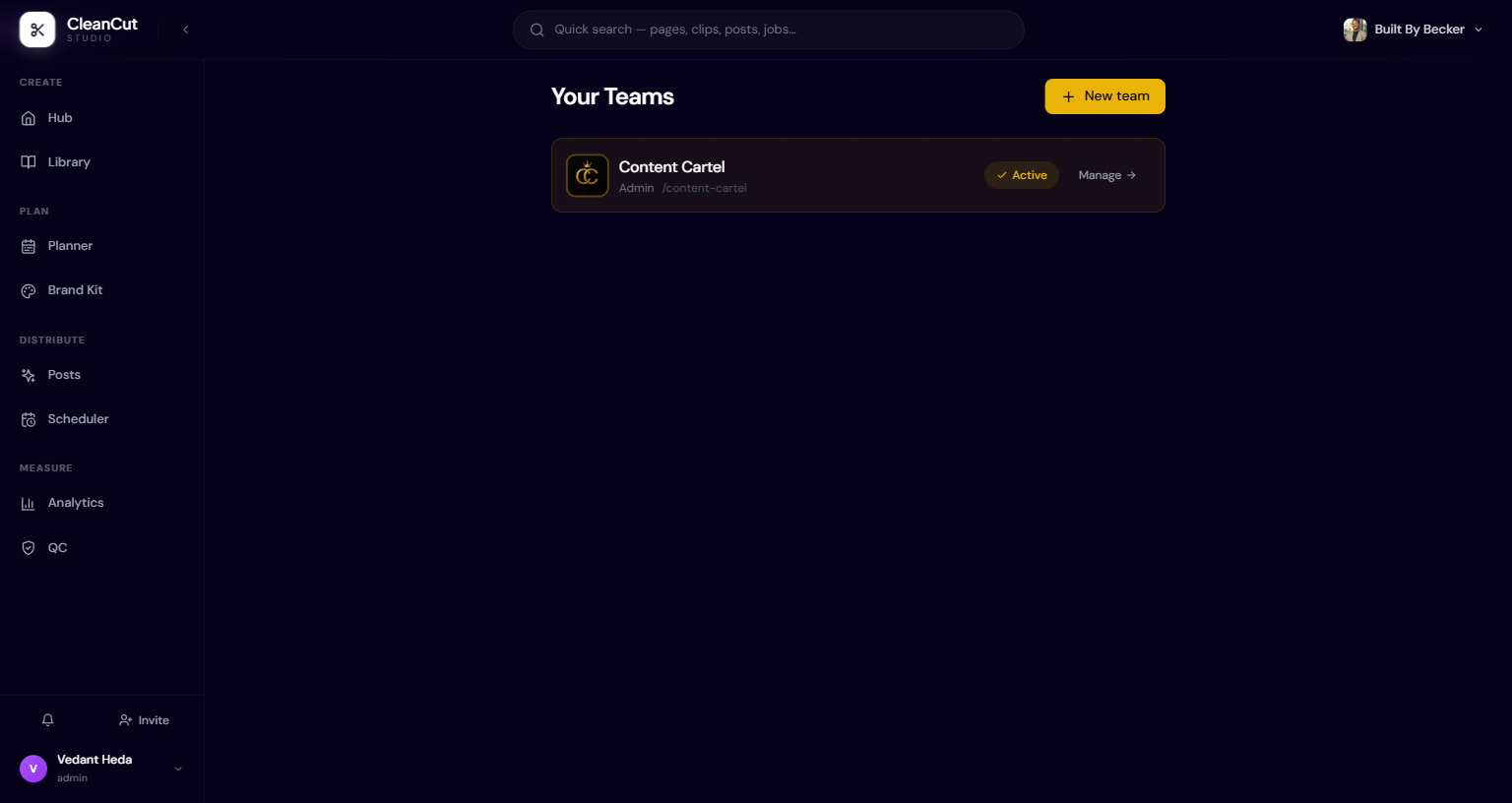
Managing teams
Your Teams shows every team you belong to, with your role in each. The active team is highlighted; use Switch to change which team you are working in, or Manage to open its settings. Create a new team with New team.
- 1Open Your Teams from settings.
- 2Click New team and enter a name.
- 3Click Create — the new team becomes active automatically.
- 4Use Manage on any team card to open its People, Workspaces, Invites, and Activity tabs.
Deleting a team is permanent. It removes every workspace inside it along with all channels, scheduled posts, planner data, and members. Admins must type the team name to confirm.
Roles and what they can do
Every member has a team role that governs what they can access. Admins have full control; CSMs can manage members, invites, and workspaces but cannot grant elevated roles. The creative and editor roles (long-form and short-form variants), Growth, and Copywriter are working roles scoped to the workspaces they’re assigned to.
- Admin — full control, including deleting the team and granting any role.
- CSM — manages people, invites, and workspaces (but cannot create admins or CSMs).
- LF / SF Creative and LF / SF Editor — long-form and short-form production roles.
- Growth and Copywriter — distribution and writing roles.
- Client — read-only. No QC, Planner, or Hub access; sees only their sanitized workspace view.
Only admins can grant the Admin and CSM roles. CSMs don’t even see those options when inviting or changing roles, because the backend enforces the same rule.
Inviting and adding members
From a team’s People tab, admins and CSMs have two ways to bring someone in. Add by email attaches an existing CleanCut user to the team directly. Invite link generates a single-use link for someone who is new.
When you create an invite you pick the role and, for non-client roles, the content type they’ll work on (both, shorts only, or longs only). CleanCut shows the invite link so you can copy and share it however you like.
CleanCut sends no automated emails — invites are share-a-link. Copy the generated link and send it through your own channel (Slack, DM, etc.). Pending invites and their links live on the Invites tab, where you can revoke any of them.
Invite links are single-use bearer tokens, so treat them like a password. Elevated (admin/CSM) invites don’t expose a copyable link for security; reissue them from the Invites tab instead.
Assigning members to workspaces
Being on the team isn’t the same as having access to a client. Open a workspace’s settings to control who can see it. A restricted workspace is visible only to admins, CSMs, and the members explicitly assigned to it.
- 1Go to the team’s Workspaces tab and open a workspace.
- 2Use Assign member to grant a teammate access to that workspace.
- 3Set their content type for the workspace (both, shorts, or longs) where applicable.
- 4Remove access later by unassigning the member from the workspace.
An editor with zero workspace assignments will be stuck loading workspace-scoped tools. If a teammate can’t see a client they should, check that they’re assigned to that workspace.