Your profile
Manage your name, email, password, preferences, and personal usage.
Where to find it
Your profile is your personal account page — separate from any team or workspace. It is where you set how you appear to teammates, secure your login, choose defaults for new jobs, and review your own activity. Open it from the account menu in the top navigation.
The page is organized into four tabs: Profile, Preferences, Usage, and Billing. CleanCut remembers the tab you last opened, so you land back where you left off.
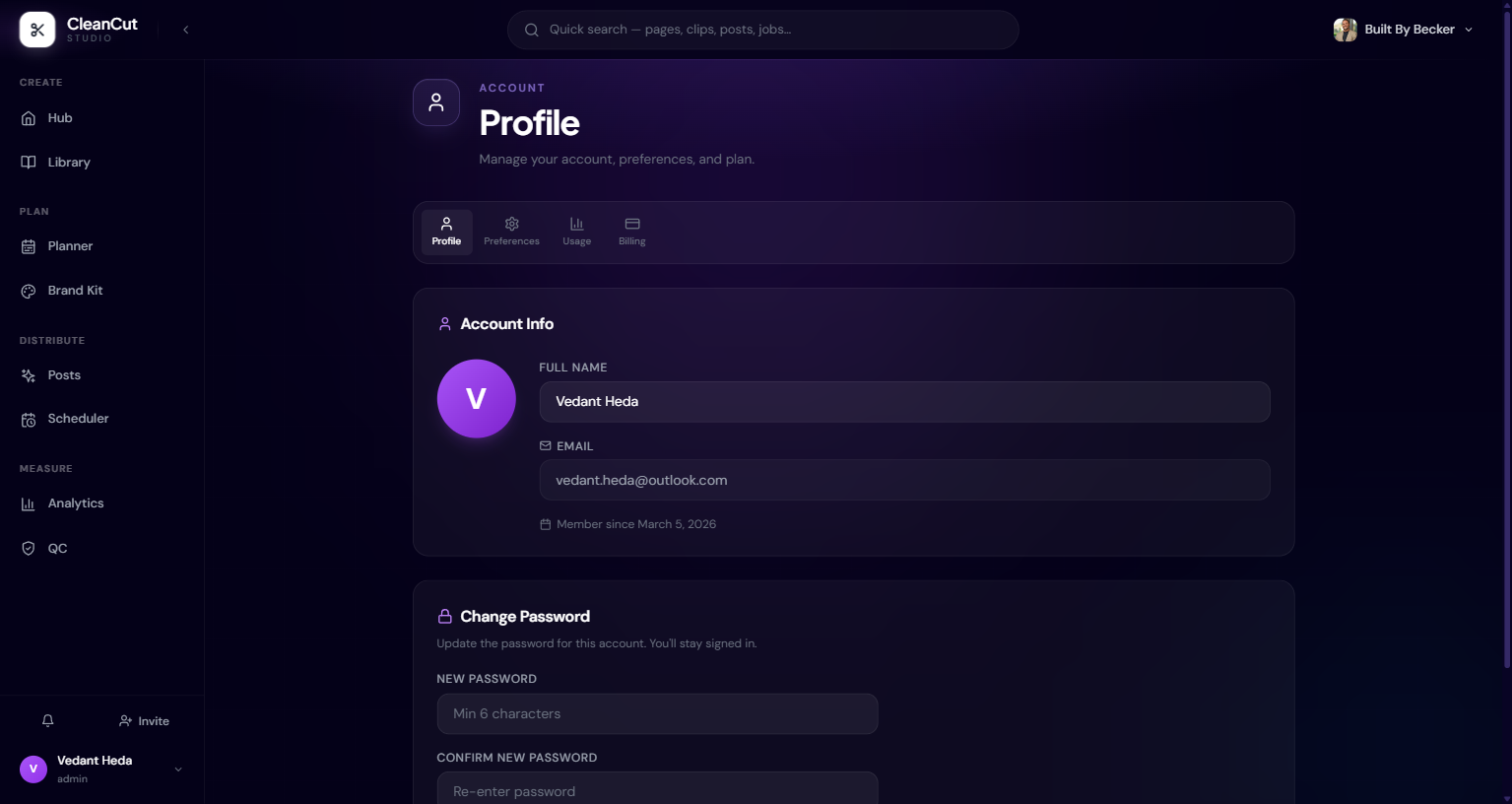
Account info
The Profile tab holds your identity. You can edit your full name and save it — a Save Name button appears as soon as you change the field. Your name and its first initial are what teammates see across team and workspace member lists.
- Full name — editable; used as your display name everywhere in the app.
- Email — shown read-only. It is the address you signed in with and cannot be changed from this page.
- Member since — the date your account was created, shown for reference.
Your avatar is generated from the first letter of your name (or email if no name is set). There is no separate profile-photo upload — set a name to control your initial.
Change your password
Also on the Profile tab, the Change Password card lets you set a new password without being signed out. Enter the new password twice and click Update Password.
- 1Open the Profile tab on your profile page.
- 2Scroll to Change Password.
- 3Type a new password (at least 6 characters) into New Password.
- 4Re-enter the same value into Confirm New Password.
- 5Click Update Password — you stay signed in on success.
Passwords must be at least 6 characters and the two fields must match, or the update is rejected before it is sent.
Preferences
The Preferences tab controls the look of the app and the defaults applied to new jobs. Theme lets you switch between Light and Dark; the choice persists across sessions.
- Default export quality — High, Medium, or Low, applied to all new jobs you start.
- Auto-remove fillers — automatically strip "um", "uh", and similar from new jobs.
- Auto-remove silence — automatically trim silent segments from new jobs.
Click Save Preferences after changing these — they are stored against your account and become the starting point every time you launch a tool.
Usage and activity
The Usage tab shows your personal activity across every workspace you work in. At the top, Usage Stats summarizes total jobs, completed jobs, minutes processed, and your most-used tool, with a per-tool breakdown bar chart.
Below that, Activity (last 30 days) gives a finer view: month-to-date job count and compute time, transcription minutes, token totals, a daily activity sparkline, your most-used features, and a table of recent jobs with their status. This is your own activity only — workspace-wide totals live under workspace settings and are admin-only.
The old /settings/my-usage link now redirects here, since personal activity moved onto the profile page.