Post Designer
Generate faceless short videos and creator-style social posts from a single idea — pick a template, write your hook, brand it, and render.
What the Post Designer does
The Post Designer turns a single idea into finished social content — without you opening a design tool. It generates two things: image posts (single graphics and multi-slide carousels) and faceless short videos built from data-driven templates like tier lists, countdowns, and stat cards.
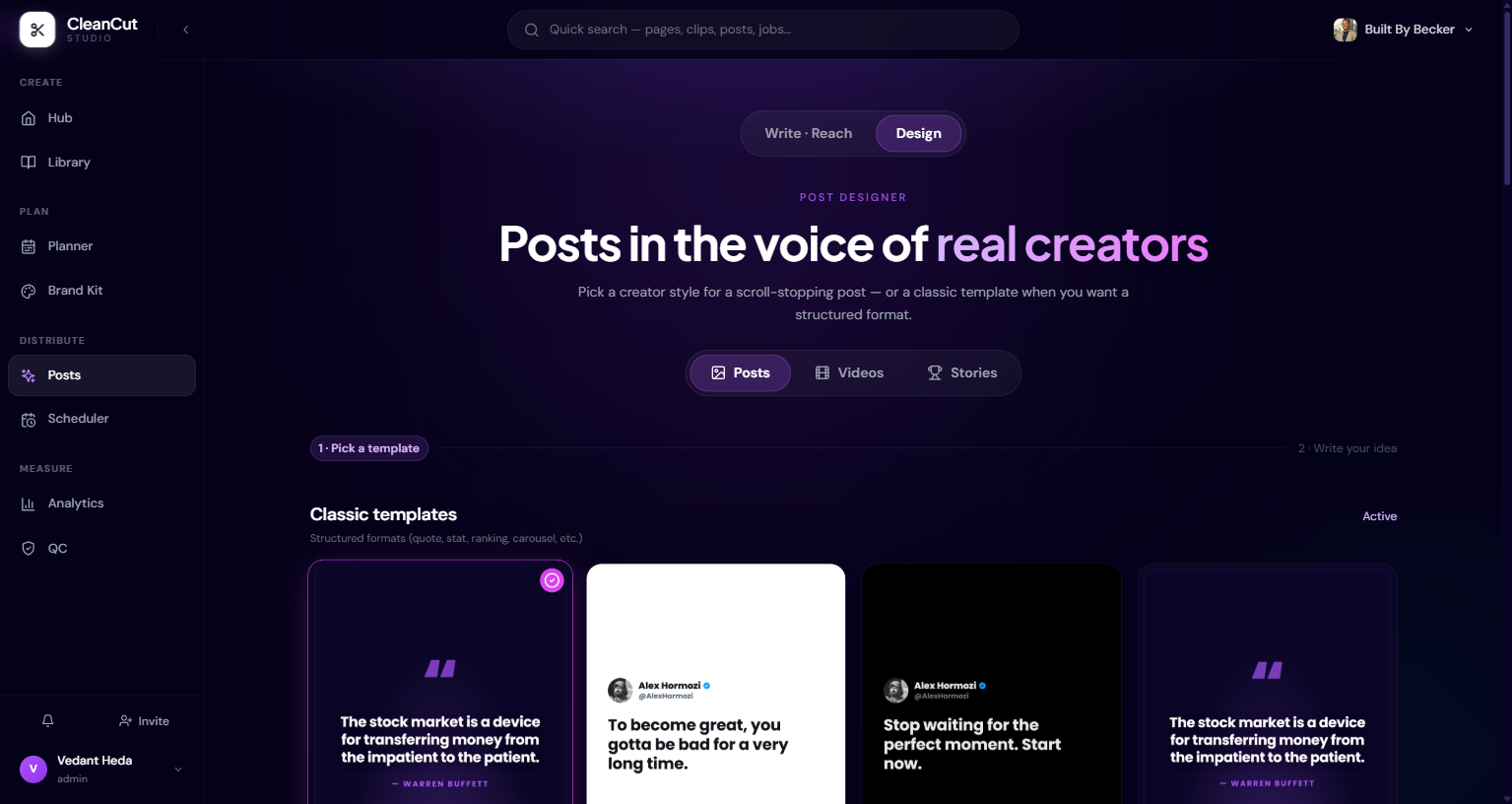
Posts vs. videos
- Posts — image graphics. Choose a Classic template (structured layouts like quote posters, stat posters, checklists, and carousels) or a Creator hook style (looks inspired by how real creators format their posts).
- Videos — faceless short videos from templates such as tier lists, ranked lists, comparisons, countdowns, stat cards, polls, timelines, price reveals, and quote cards. Output is a 9:16 MP4.
Building a post
- 1Pick a template from the gallery — selecting one takes you to the configure screen.
- 2Type your idea or hook into the text field.
- 3Customize the look: accent color, text color, background, and font.
- 4Optionally add your brand identity — display name, handle, avatar, and a verified badge.
- 5Watch the live preview update at the real output proportions, then generate.
You can set the aspect ratio (1:1, 4:5, or 9:16) for image posts. Classic templates also let you upload a custom background image. Your font and brand choices are remembered for next time.
Carousels
Some Classic templates are multi-slide carousels (for example a tips or framework series). Creator posts can be turned into a carousel with a single toggle. Carousel output is a set of images you can flip through in the preview and download together as a ZIP.
Faceless videos
- 1Choose a video template and describe what it should contain.
- 2Optionally upload your own B-roll, or give a category hint (like "nature", "city", or "money") to guide the stock footage it uses.
- 3Pick a font, accent color, and brand identity, and choose an animated or static variant.
- 4Generate, then download the finished MP4.
A few templates color themselves by meaning — a tier list, for example — so the accent-color control is disabled for those to keep the result readable.
Rendering and downloading
After you generate, a progress bar shows the job moving from queued, to drafting content, to rendering. When it completes, preview the result — flipping through slides for carousels — and download it. Image posts come out as PNGs (or a ZIP for carousels); videos come out as MP4s.
Want a variation? Hit "Make another" to reset and try a different template, hook, or color scheme without losing your brand settings.