Media Hub
Upload once and use everywhere — the central library for your videos, processed episodes, and saved clips, with chunked, resumable uploads.
What the Media Hub does
The Media Hub is the central place your media lives. Upload a video once and send it into any tool — the Editor, the Clipper, Quotes, AI Notes — without re-uploading. It also collects what those tools produce: your processed episodes and your saved clips, so finished work stays in one library.
Uploading media
- Upload a file by dragging it in or browsing — single files or a batch.
- Paste a URL instead: a direct link, YouTube, Google Drive, Dropbox, Vimeo, or OneDrive.
- Watch live progress with the percentage, transfer speed, and estimated time remaining.
Large files upload in chunks rather than as one big request, which is more reliable on shaky connections. If an upload is interrupted, it can resume from where it left off instead of starting over.
A transient network blip will not necessarily fail the whole upload — the chunked uploader retries and picks back up, so large files are more likely to land on the first try.
The 4-hour upload window
A freshly uploaded file is held for about 4 hours so you can hand it to a tool. Once a tool processes it, the output — your cleaned video, clips, or quotes — is saved as a job and persists in your library; it is not subject to that short window.
Start processing your upload within the 4-hour window. If you wait too long, the raw upload may be cleared and you will need to upload it again.
Episodes
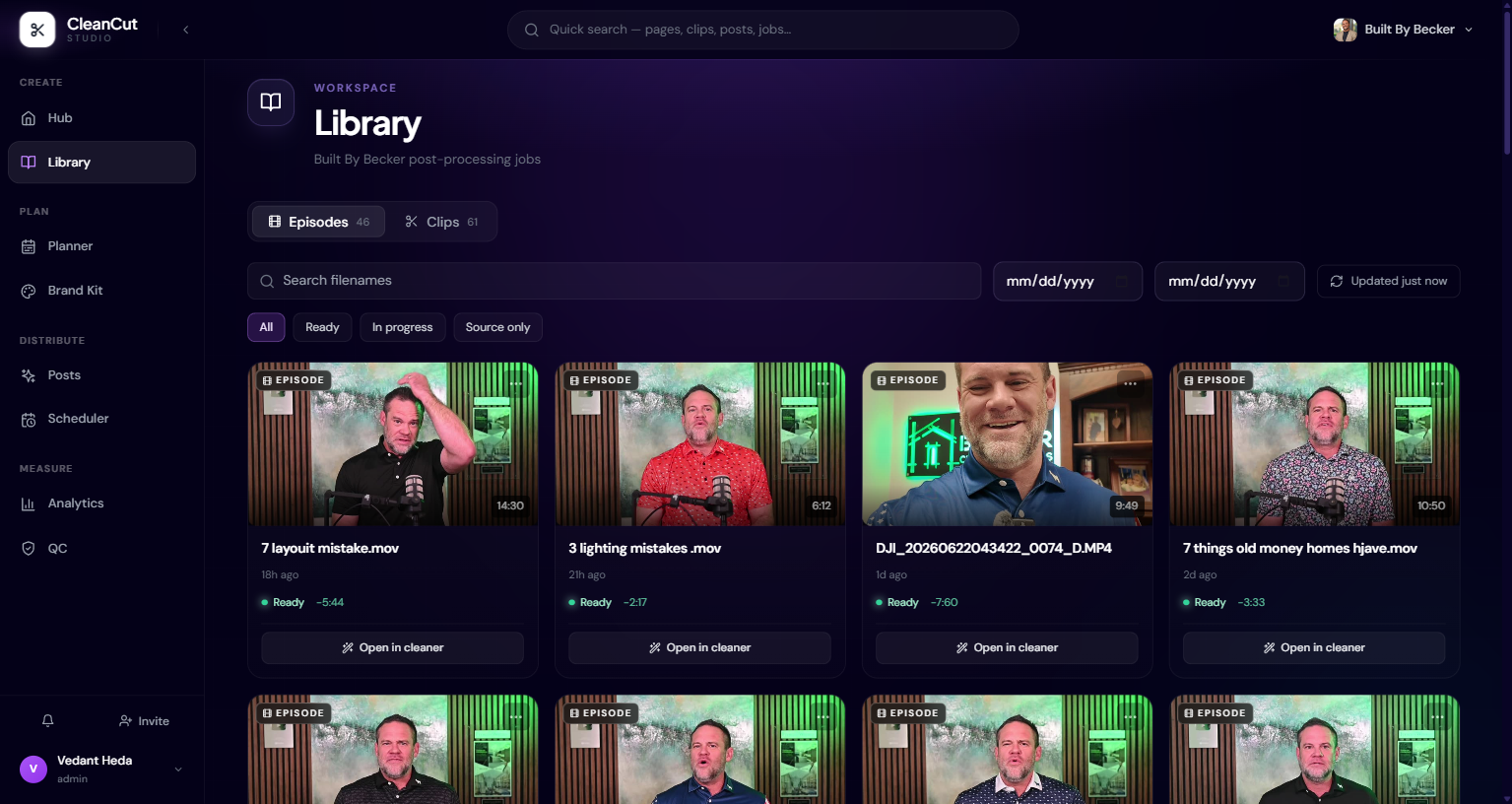
The Episodes tab lists your processed videos — full edits from the Editor, plus videos that came in through Drive automation. Each entry shows its filename, when it was processed, its status (ready, in progress, source only, or failed), and how much time the edit saved.
- Search by filename and filter by date range.
- Hover a card to preview the video.
- Open an episode in the Editor or the Clipper to keep working on it.
Saved clips
The Clips tab holds the short-form clips you saved from the Clipper. Each shows its title, parent video, render status, and virality score. Open a clip to edit it, or jump back into its detail view. Saving clips here keeps the rendered MP4s durable instead of leaving them in temporary storage.
Sending media into a tool
- 1Upload your video (or open an existing item in the library).
- 2Choose a tool — the Editor, Clipper, Quotes, or AI Notes.
- 3The tool loads the media directly from the Hub, so there is no second upload.
- 4When the job finishes, its output lands back in your library.
The library auto-refreshes while you watch it, so rendering progress, new clips, and status changes show up without a manual reload.