Calendar
Connect your accounts, schedule and publish posts, and manage playlists from one calendar.
What the Scheduler does
The Scheduler is your content calendar and publishing engine. Connect your accounts once, then plan, schedule, and publish across YouTube, Instagram, Facebook, Threads, LinkedIn, and TikTok from a single, colour-coded calendar.
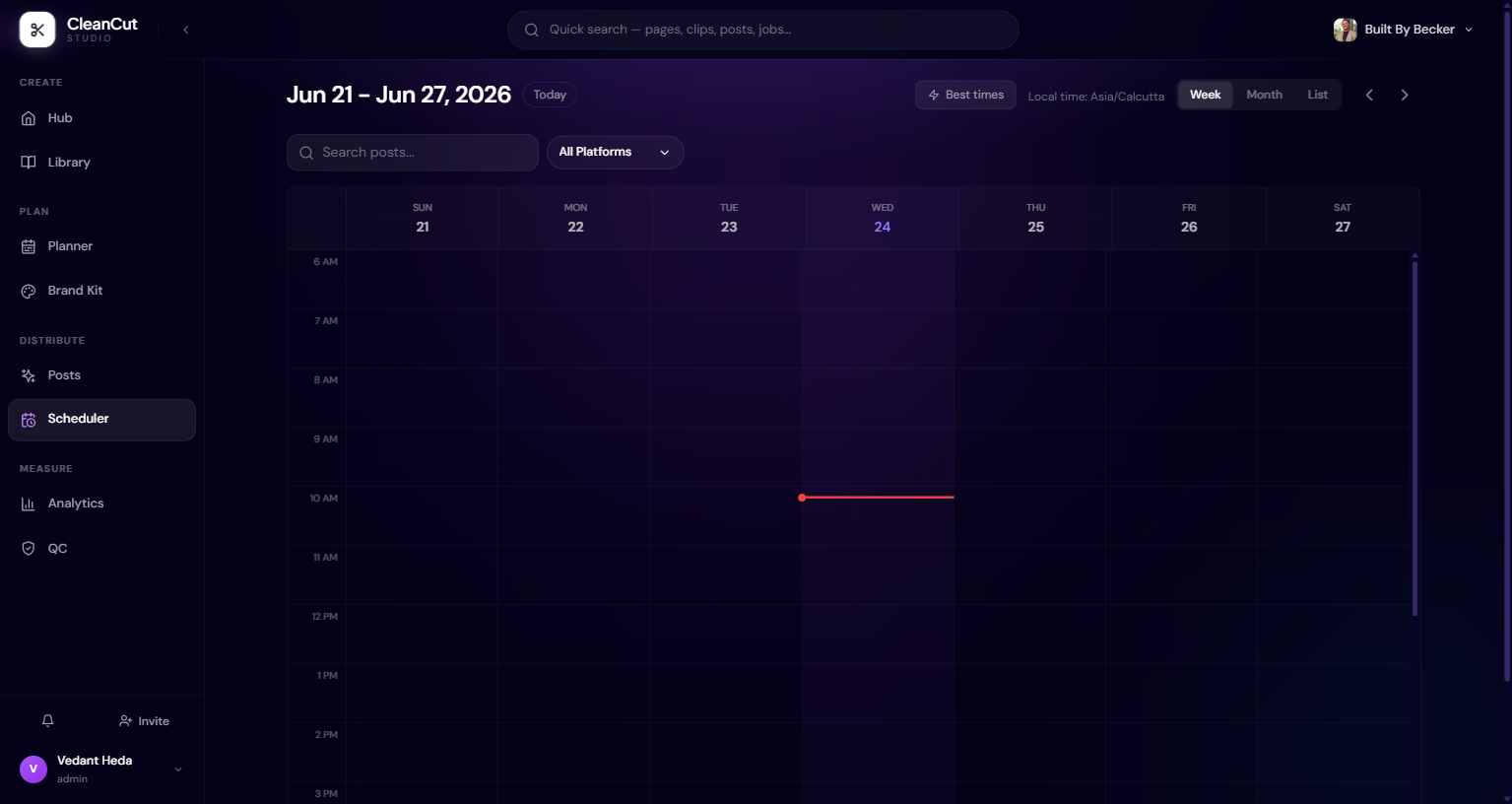
Everything is organised by platform tabs and a unified calendar you can view by day, week, or month. Posts are colour-coded by platform, and clicking any slot lets you create or edit a post.
Connecting accounts
Before you can schedule, connect each platform. YouTube uses Google OAuth; Meta covers Instagram, Facebook, and Threads; LinkedIn and TikTok each connect over their own OAuth. Disconnected platforms show a Connect button; connected ones show their status, and a platform whose token has expired or been revoked will prompt you to reconnect.
- 1Open the platform tab you want to publish to.
- 2Click Connect and complete the OAuth consent flow.
- 3Grant all requested scopes — unticking boxes leaves the connection incomplete.
- 4Confirm the platform now shows as connected before scheduling.
During YouTube consent, leave every requested permission ticked. A partial grant causes connection failures — reconnect and accept all scopes if that happens.
Creating and scheduling posts
The unified composer is where posts come together. Set a title and description, pick a date and time, and choose which platforms to publish to — a single post can go to several at once. You can also duplicate a post to clone it to another platform, or open an existing post to edit it.
- Create Post opens the composer for a new post.
- Pick a schedule date and time, or post immediately.
- Select one or more platforms to publish the same post.
- Duplicate a post to adapt it for another platform.
- Bulk Schedule batches multiple uploads at once.
A Sync with YouTube button pulls in deletions and edits made directly in YouTube Studio, so the calendar reflects reality even when changes happen outside CleanCut.
Auto Schedule
Auto Schedule keeps a steady cadence running without you queuing every post by hand. It gates on two things: you must connect at least one platform and set a cadence on at least one platform. Once those are met, pick a cadence per platform across the TikTok, Instagram, YouTube, and LinkedIn grid, preview the next seven days, and flip the master toggle on.
A stat strip keeps you honest — it shows clipping and scheduling activity, the total scheduled, and any failures in the last 24 hours.
Auto Schedule won’t run until both gates are satisfied: a connected platform and a cadence set on at least one platform.
Playlists and settings
The Playlists page manages your YouTube playlists — create, edit, and delete them with a title, description, and privacy level of public, unlisted, or private. Private playlists show a locked icon.
Settings is where you manage platform connections (YouTube, Meta, LinkedIn, TikTok), edit the workspace name, upload a logo, move channels between workspaces, and — if you really mean it — delete a workspace by typing its name to confirm.
Deleting a workspace requires typing its name to confirm. It removes the workspace’s connections and scheduled content — there’s no undo.