Planner
Turn channel data and trend research into ideas, scripts, and a content plan.
What the Planner is for
The Planner is where you decide what to make next. It pulls in your channel’s real performance, watches what’s trending in your niche, and turns both into concrete ideas, scripts, and a pipeline you can work through. Nothing here is generic filler — ideas and strategy are grounded in your actual videos and the channels you track.
The Planner is workspace-scoped. Everything you see — channels, ideas, plans, brand strategy — belongs to the workspace you currently have open, so agency teams keep each client’s planning separate.
Choosing a channel
Everything in the Planner is anchored to a channel. The channel picker at the top of the sidebar lets you switch between your own channel and any competitor channels you track. Each entry shows a status badge — “Your channel”, “Tracked”, or a progress percentage while CleanCut is still scraping and scoring its back catalogue.
- 1Open the channel picker at the top of the sidebar.
- 2Use Add Channel to bring in a YouTube channel by OAuth or by pasting its URL.
- 3Wait for the status badge to finish scraping before generating ideas — fuller history means better suggestions.
- 4Switch channels at any time; the rest of the Planner re-scopes to the selection.
Connecting your own channel by OAuth unlocks deeper analytics; tracked competitors can be added by URL alone.
Ideation and Scripting
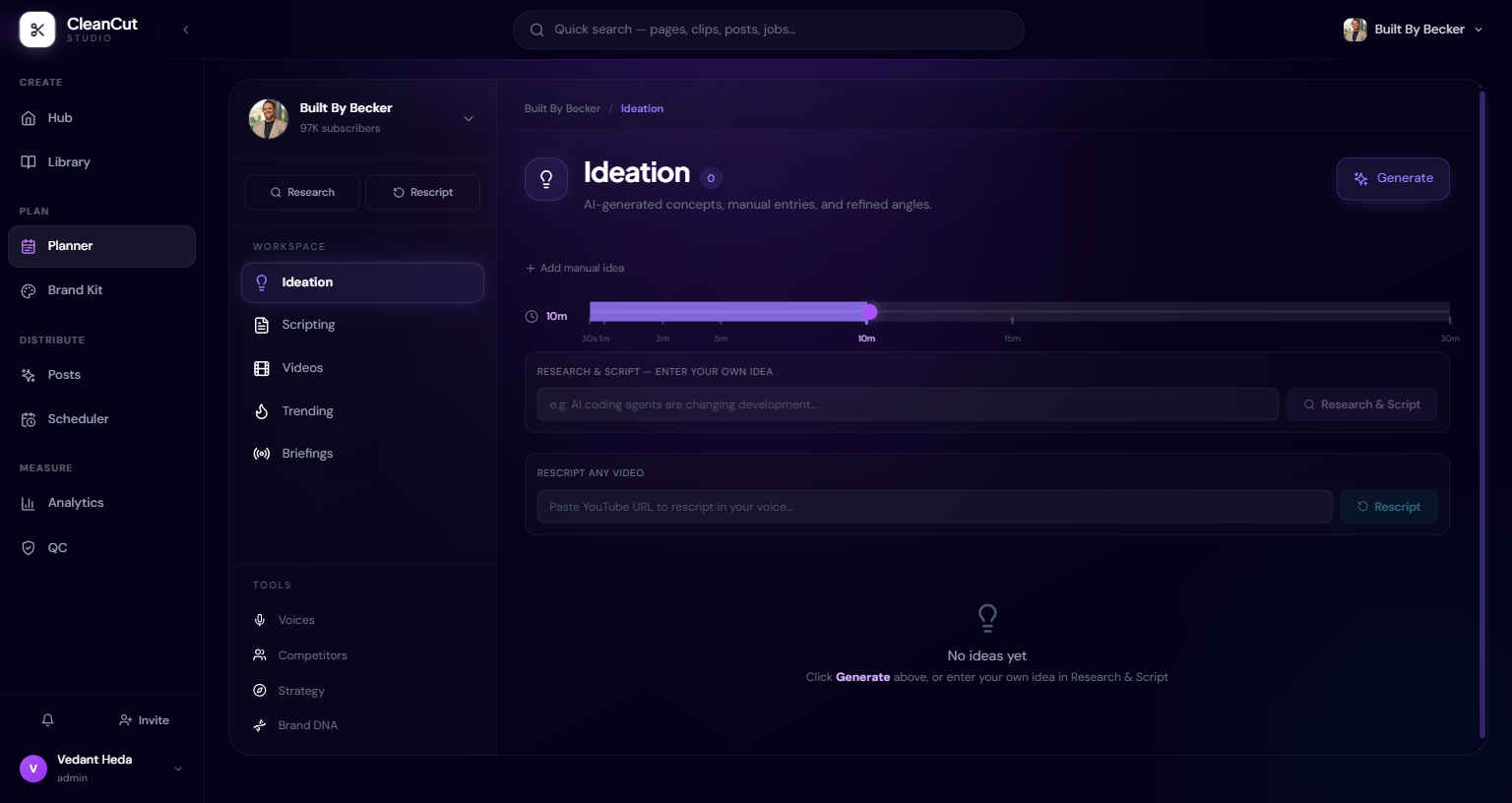
Ideation generates content ideas for the selected channel. A duration control lets you target anything from a 30-second short to a 30-minute long-form piece, and you can refine an idea with a prompt, dismiss the ones that miss, or push a keeper straight into a script or a short.
Scripting is your production pipeline. Each plan moves through statuses — idea, scripted, recording, recorded, editing, edited — and the inline editor lets you draft and revise the script without leaving the page. Plans remember where they came from, whether that’s a fresh recommendation, a rescript of an existing video, or an adaptation to another platform.
- Generate ideas tuned to the channel and a chosen duration.
- Refine, dismiss, or promote an idea to a script or short.
- Track every plan by production status in one place.
- Edit scripts inline as you move through the pipeline.
Trending and Briefings
Trending surfaces niche research briefs drawn from sources like Reddit, YouTube, and news. Each item carries an urgency badge — “Act now” or “This week” — along with supporting evidence and a suggested video angle, so you can move on a moment before it cools off. You can rescript or make a short directly from any brief.
Briefings go a level deeper, synthesising trends into theme cards. Each theme shows a confidence badge, supporting items from a wide spread of sources, and competitor “breakout” references that show how fast a topic is accelerating elsewhere. From a theme you can Generate ideas or Write script in one click.
Watch the urgency and confidence badges — they help you spend effort on the topics most likely to pay off right now.
Strategy, Competitors, and Brand DNA
The Tools group in the sidebar holds the longer-horizon work. Strategy analyses your channel and lays out a direction. Competitors keeps the similar channels you track, persisted from your channel insights. Voices manages your cloned voices for AI voiceover.
Brand DNA is a multi-version playbook with nine sections, each carrying a confidence level of high, partial, or low. The bodies are written in markdown and call out gaps explicitly with tags like [NEEDS DATA], [NEEDS CONFIRMATION], and [INFERRED], so you always know what’s evidence-backed versus inferred. Expand a section to read it, and keep older versions for reference as the playbook evolves.
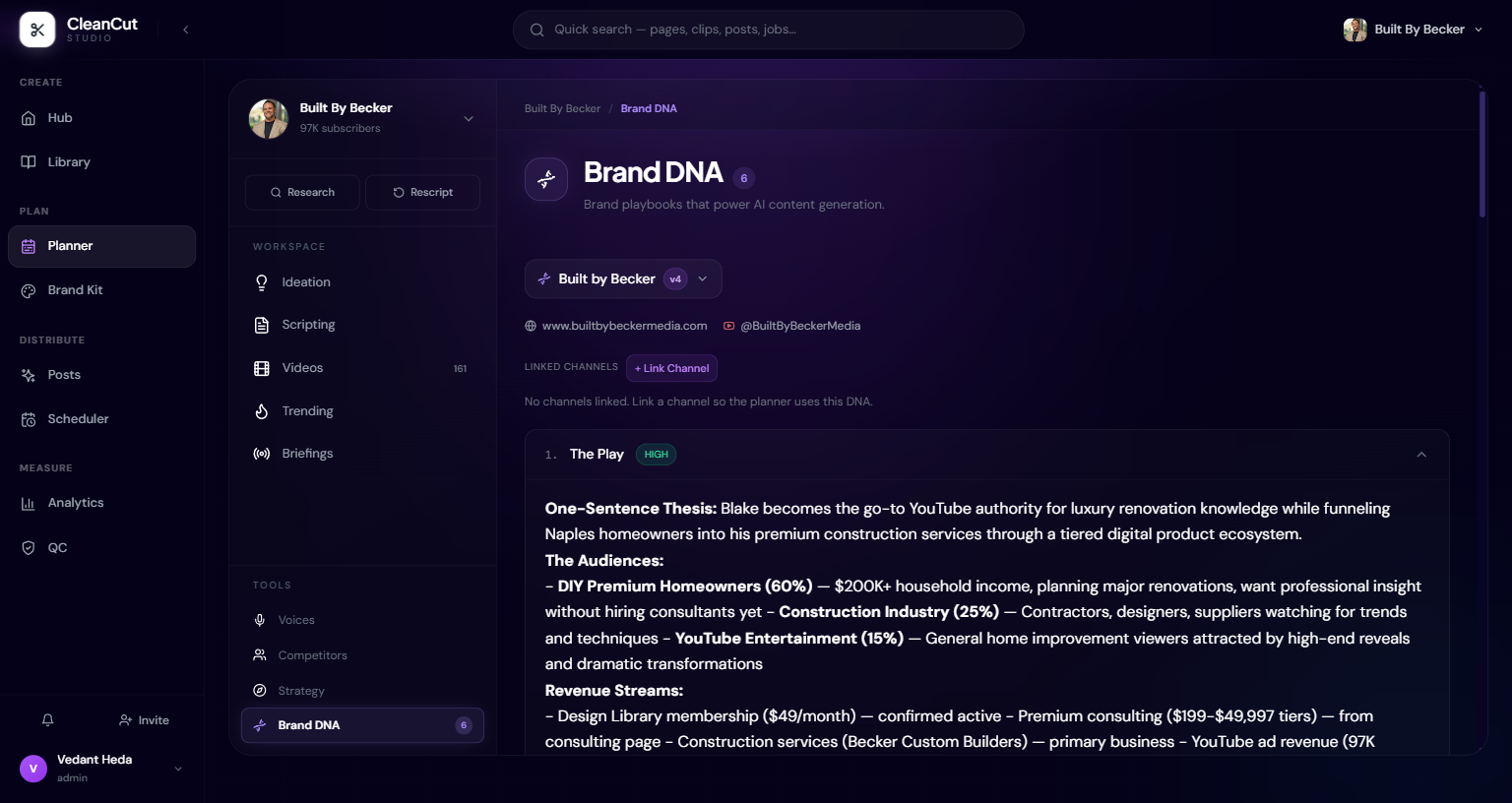
Brand DNA shapes the AI outputs across the Planner. The same brand guidelines also live in the Brand Kit — see that article for how they feed captions and palettes.