Brand Kit
Per-client brand guidelines that feed CleanCut’s AI outputs, captions, and palettes.
Why a Brand Kit
The Brand Kit is the single place to define how a client looks, sounds, and reads — and then have every tool in CleanCut respect it. Set fonts, colours, caption styles, vocabulary, and a written brand playbook once, and they flow into clip captions, quote images, voiceover, and AI-generated copy automatically.
The Brand Kit is workspace-scoped, so each client you run in its own workspace gets its own identity. Tabs run down a vertical rail on the left.
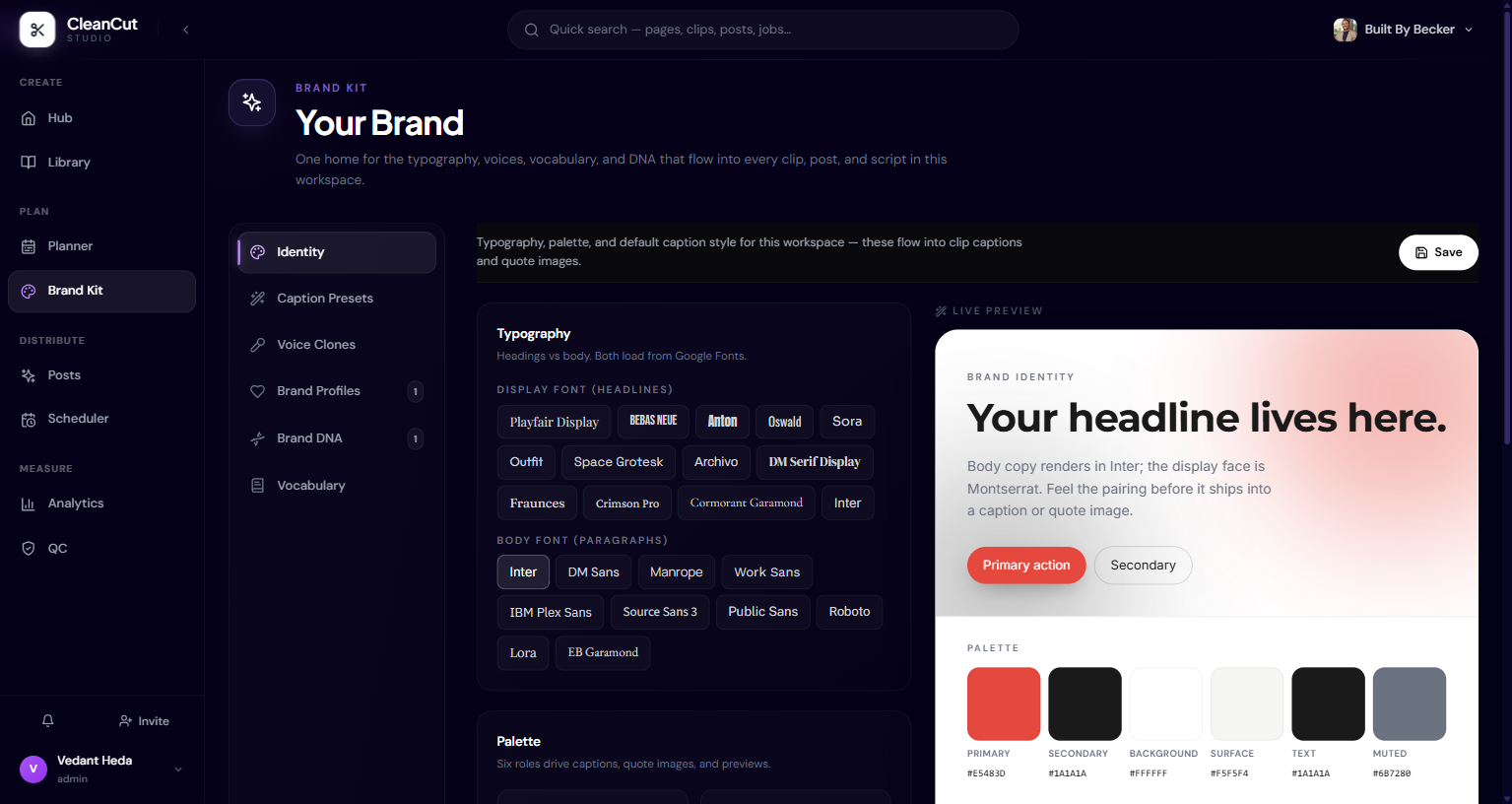
Identity
Identity holds the visual basics. Pick a Display Font and a Body Font from the preset lists, set a six-colour palette, and choose the caption preset that new clips should start from.
- Display Font and Body Font, chosen from curated preset lists.
- A six-colour palette: Primary, Secondary, Background, Surface, Text, and Text Muted.
- A Default Caption Preset applied to new clips out of the box.
- An option to import a legacy local kit if you have one.
Setting the default caption preset here means the Clipper starts every new clip on-brand, with no per-clip styling needed.
Caption Presets
Caption Presets are saved caption styles, each shown with a 9:16 preview so you can see the look before applying it. Expand a preset to inspect its full configuration, create new ones, or delete those you no longer use.
Presets are bi-directional with the auto-clipper: a style you save here is available when clipping, and the default you choose in Identity is what new clips adopt. This keeps captions consistent across every short you produce for the client.
Caption rendering in CleanCut uses Canvas 2D for both preview and export, so the 9:16 preview reflects what the finished clip will show.
Vocabulary and Voice Clones
Vocabulary teaches CleanCut the words that matter to the brand — product names, people, places, acronyms, and common misspellings to correct. Each term is filed under a category (general, brand, product, person, place, or acronym) and, in a multi-profile workspace, tied to a specific brand profile. This list is synced with the QC pipeline, so corrections you define here are applied downstream.
Voice Clones lists the cloned voices available for AI voiceover. You can review the voices in the workspace and remove any you no longer need.
- 1Open the Vocabulary tab.
- 2Add a term, set its Correct Term spelling and Category.
- 3In a multi-profile workspace, assign it to the right Brand Profile.
- 4Save — the term now flows into QC and AI outputs for that brand.
Brand Profiles and Brand DNA
A workspace can hold more than one brand. Brand Profiles lists the brands in the workspace along with their DNA versions, so you can manage several clients or sub-brands in one place.
Brand DNA is the written playbook — nine editable sections per brand, with an inline markdown editor for each. Pick a brand from the selector, edit a section, and save it as a new version; CleanCut keeps the version number so you can track how the playbook changes. An AI regenerate button can draft sections for you when you’re starting from little.
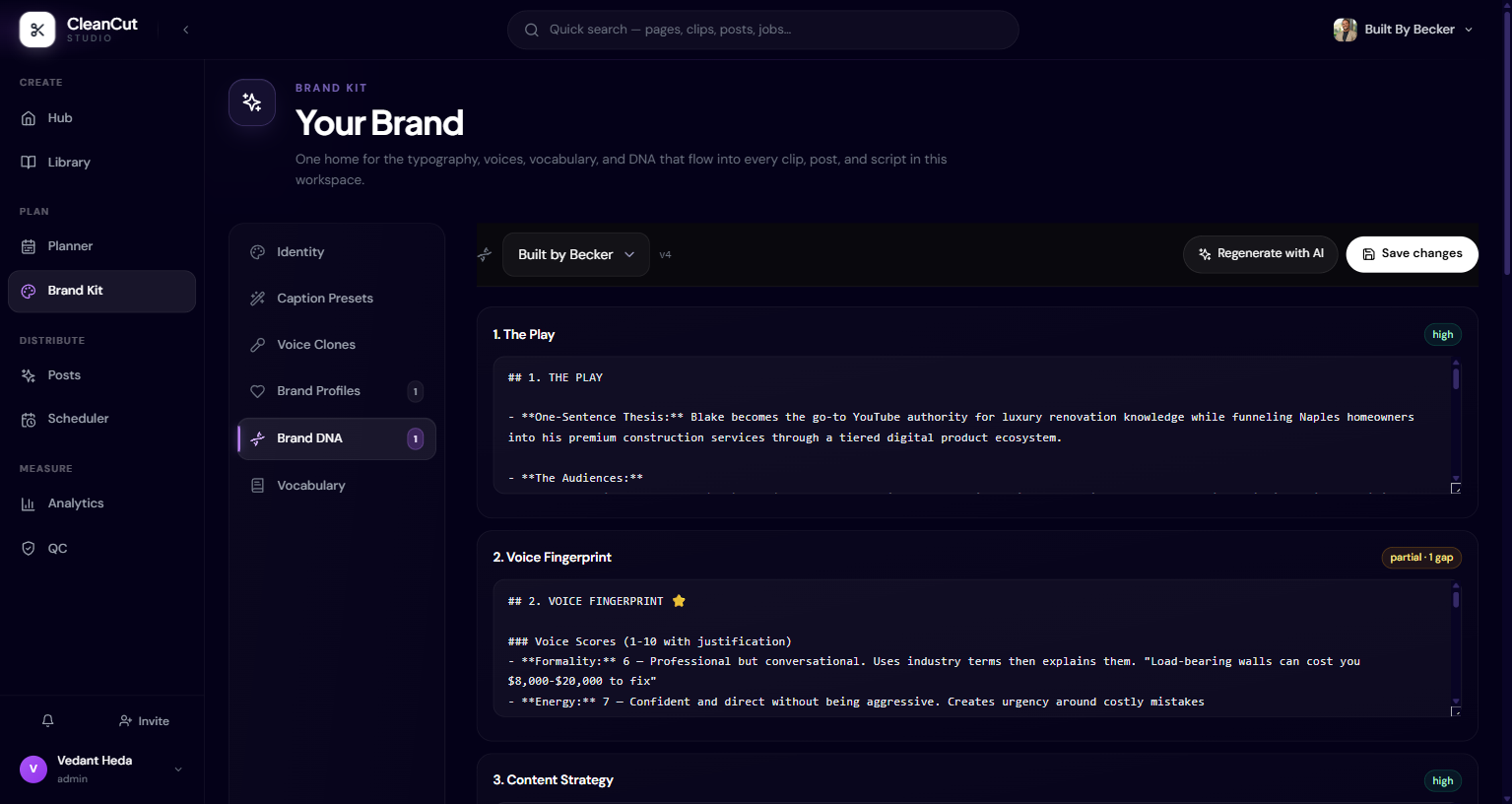
Saving Brand DNA creates a new version rather than overwriting the old one. Make sure you’re editing the brand you intend — use the brand selector before you start.