Clipper
Automatically find the most clip-worthy moments in a long video, score them for virality, and export vertical short-form clips with captions.
What the Clipper does
The Clipper watches a long-form video and pulls out the moments most likely to perform as short-form clips. Each candidate gets a virality score and a category, so you can see at a glance which moments are worth posting. It is built for turning one podcast, interview, or talk into a batch of ready-to-publish verticals.
Starting a clip job
- 1Upload a video file, paste a URL, or pick a video you already have in the Media Hub.
- 2Adjust the extraction settings if you want, then start the job.
- 3The Clipper analyzes the video in the background — watch the progress as it transcribes and scores moments.
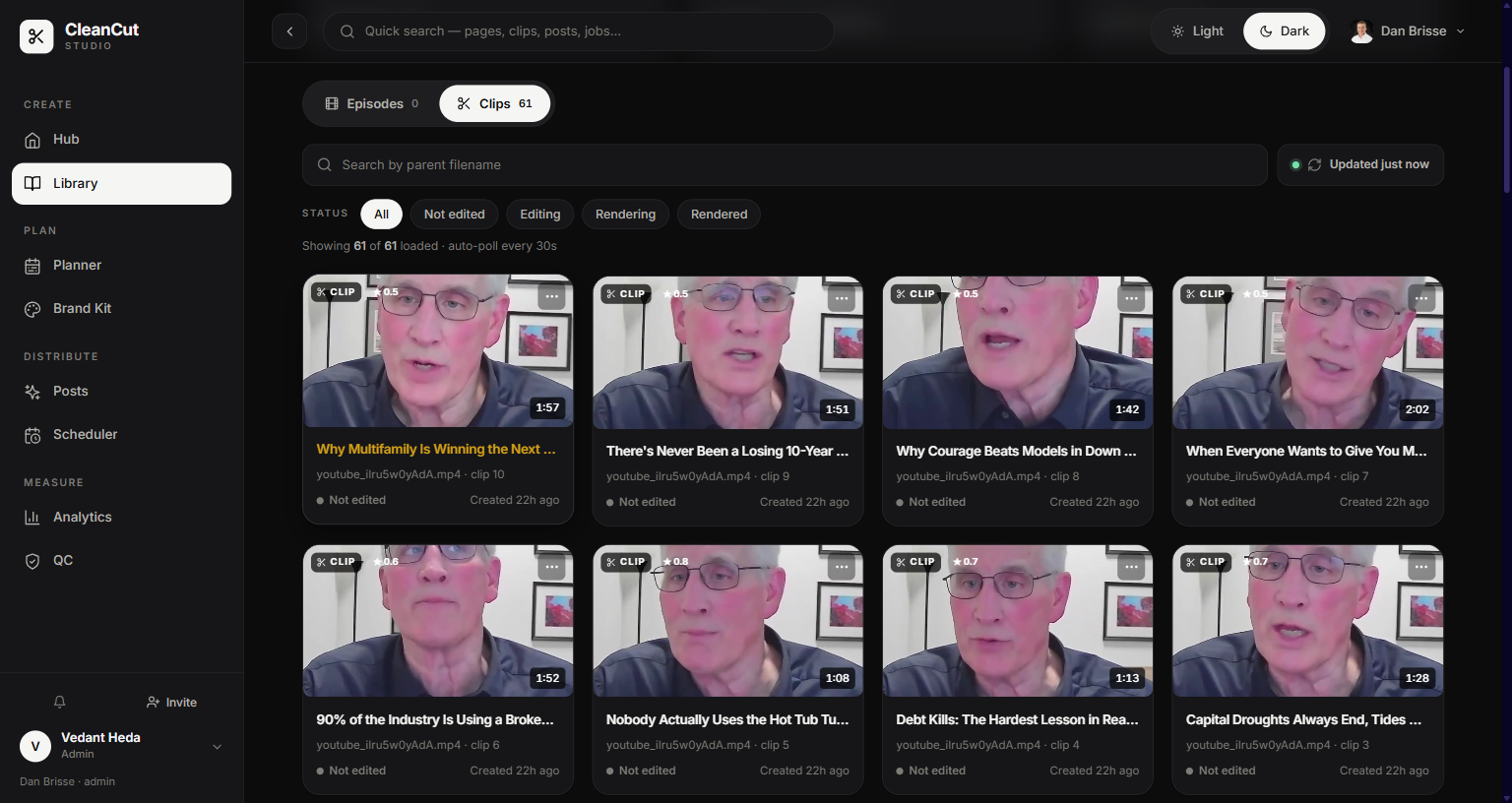
- 4When it finishes, the detected clips appear as a grid of cards.
A long source video can take a while to analyze. You can leave the page and come back — the job keeps running, and your recent jobs are saved so you can resume them.
Virality scoring and categories
Every clip is rated for virality and tagged with a category that describes why it stands out:
- Hook — an attention-grabbing opener.
- Insight — a sharp, quotable takeaway.
- Story — a self-contained narrative moment.
- Emotional — a moment with feeling behind it.
- Controversial — a take that sparks discussion.
- Funny — a moment that lands a laugh.
- Tactical — a concrete, actionable tip.
Sort the grid by score, duration, chronological order, or tier to find the clips you want fastest. Open any clip to see a breakdown of why it scored the way it did.
Reframing and captions
Clips are auto-reframed from 16:9 to 9:16 so they fit vertical feeds without you cropping by hand. Each clip can carry word-by-word captions, and you can pick a caption style from the preset grid — including styles saved to your Brand Kit.
Captions are rendered with Canvas 2D so the preview matches the export. You can edit the transcript and adjust caption styling per clip before rendering.
Trimming, editing, and re-cutting
- Trim a clip's start and end to tighten the moment.
- Edit the transcript text and caption styling in the clip editor.
- Add a hook overlay to the opening seconds, written by AI or by you.
- Re-cut or iterate a clip if the auto-detected boundaries are not quite right.
Exporting and saving
- 1Render a clip to bake in its captions, reframe, and hook.
- 2Download individual clips, or grab a ZIP of all clips (or just the ones you selected).
- 3Save clips to your library so the rendered MP4s persist and stay reachable from the Media Hub.
Save the clips you care about to your library — that keeps the rendered files durable instead of leaving them in temporary storage.